Integration into Home Assistant
This note consists of the following steps:
- Preparing home assistant host
- Installation and configuration of owserver server
- Installation and configuration of 1-Wire integration
We are going to use hassio-owserver and onewire integration.
Preparing home assistant host
For this application note, it is assumed that Home Assistant is installed on the same device to which the USB thermometers are connected. To verify that the thermometers are detected, open the OS shell and check the output of dmesg.
ha >login
# dmesg | grep pl2303
[ 4137.010502] usbcore: registered new interface driver pl2303
[ 4137.010526] usbserial: USB Serial support registered for pl2303
[ 4137.010540] pl2303 1-2:1.0: pl2303 converter detected
[ 4137.010687] usb 1-2: pl2303 converter now attached to ttyUSB0
For each additional USB thermometer last two lines would be repeated.
Onewire Server installation and configuration
In Home Assistant dashboard, e.g. http://homeassistant.local:8123/, go to Settings → Add-ons → Add-on Store. There, in top right corner (three dots) click Repositories and add repository URL: https://github.com/lrybak/addon-repository.
Back in search field enter owserver and select option owserver (1-wire). On add-on page click Install and wait for installation.
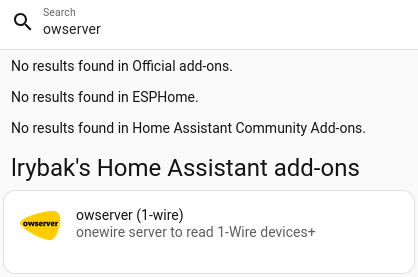
After installation of add-on additional tabs appears. Go to owserver add-on's Configuration tab. Under Options, devices click on pencil icon and select:
- device_type
- passive
- device
- /dev/serial/by-id/usb-Prolific… (starts like this)
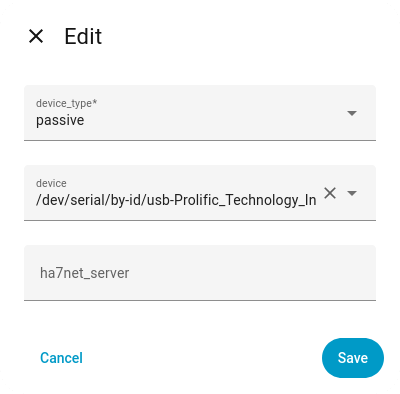 Click Save and return to add-on Info tab. Click Start and write down hostname on right side. It would be like bd5a478a-owserver.
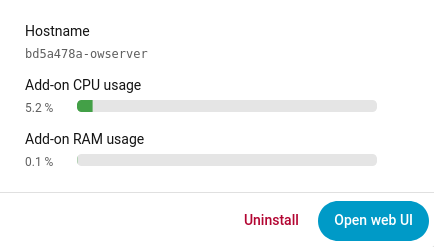
To add second USB thermometer click Add below device list and select different device from a list.
1-Wire integration installation and configuration
Go to Settings → Devices & Services. Click Add integration and enter 1-Wire.
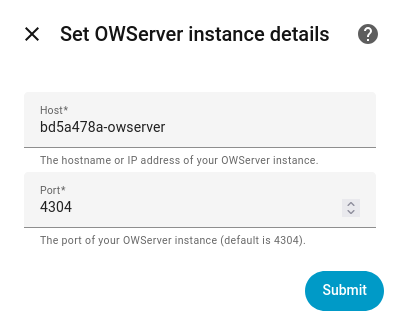
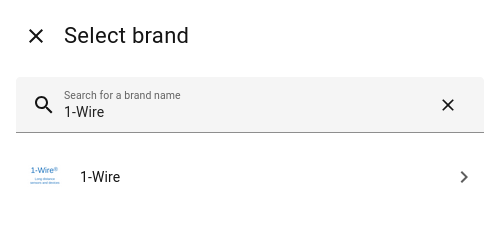 After you select 1-Wire, you’ll be prompted for:
- Host
- enter hostname from previous step
- Port
- keep 4304
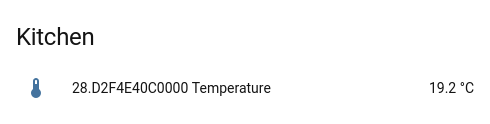
 After setup, Home Assistant will scan for termometers and create entities for supported devices.
Troubleshooting
Write to support e-mail address written on the main website.